Themes and color indicators
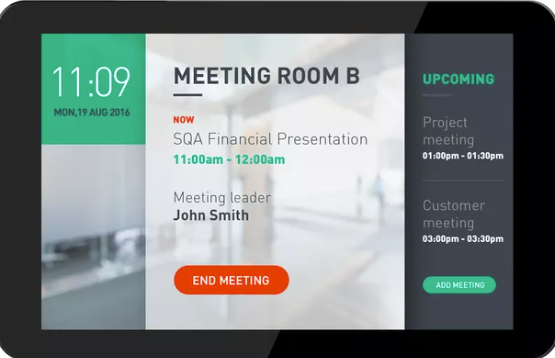
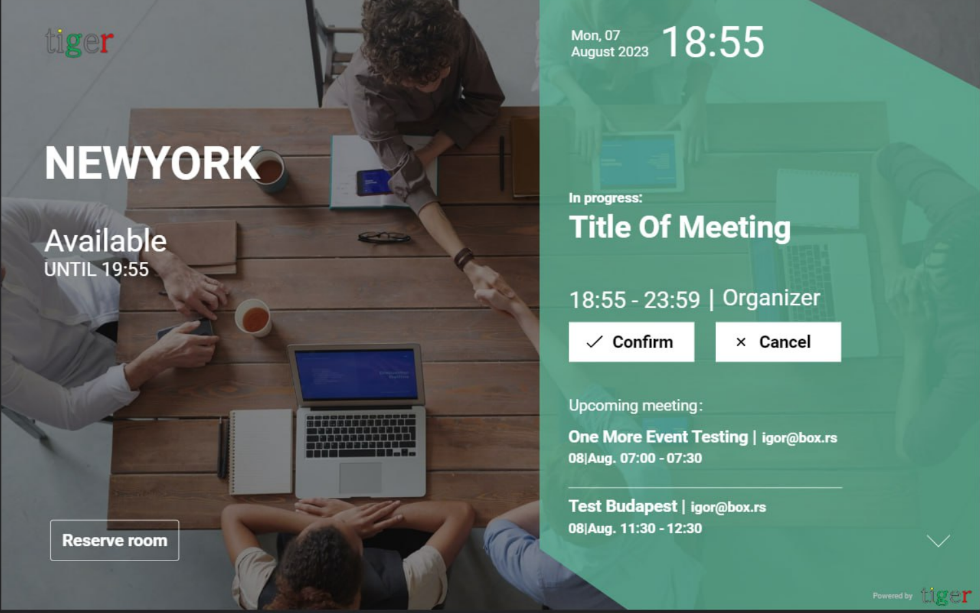
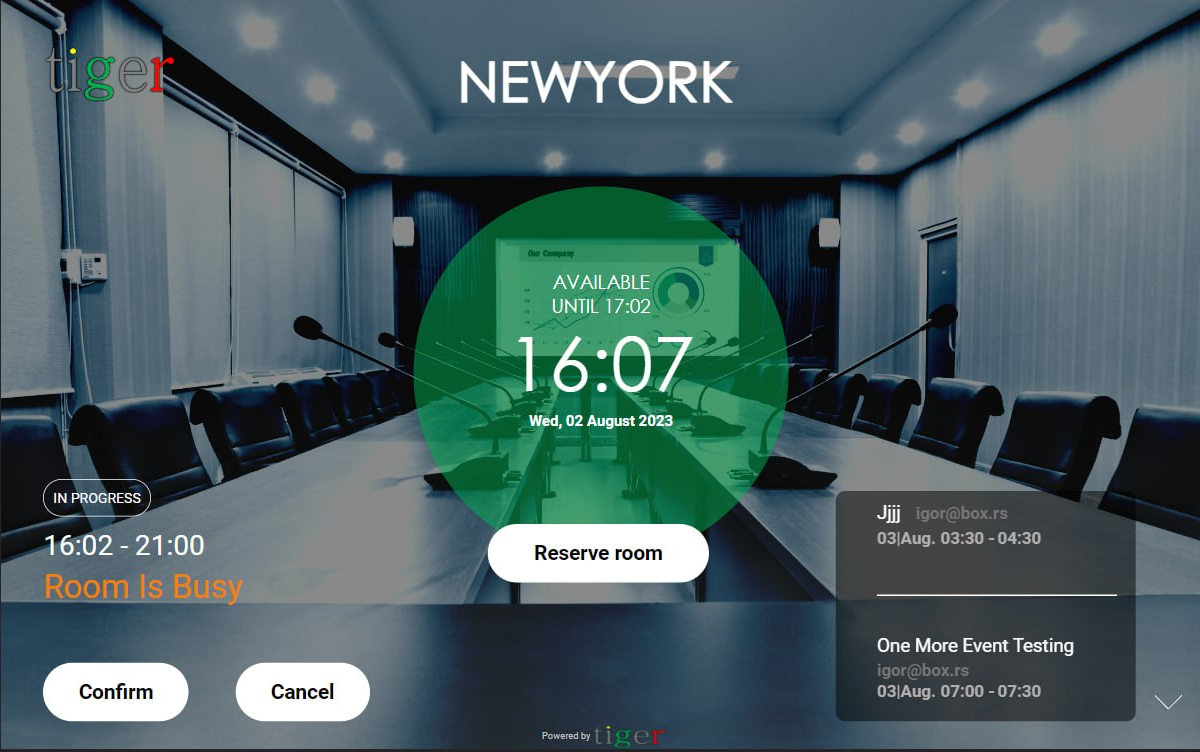
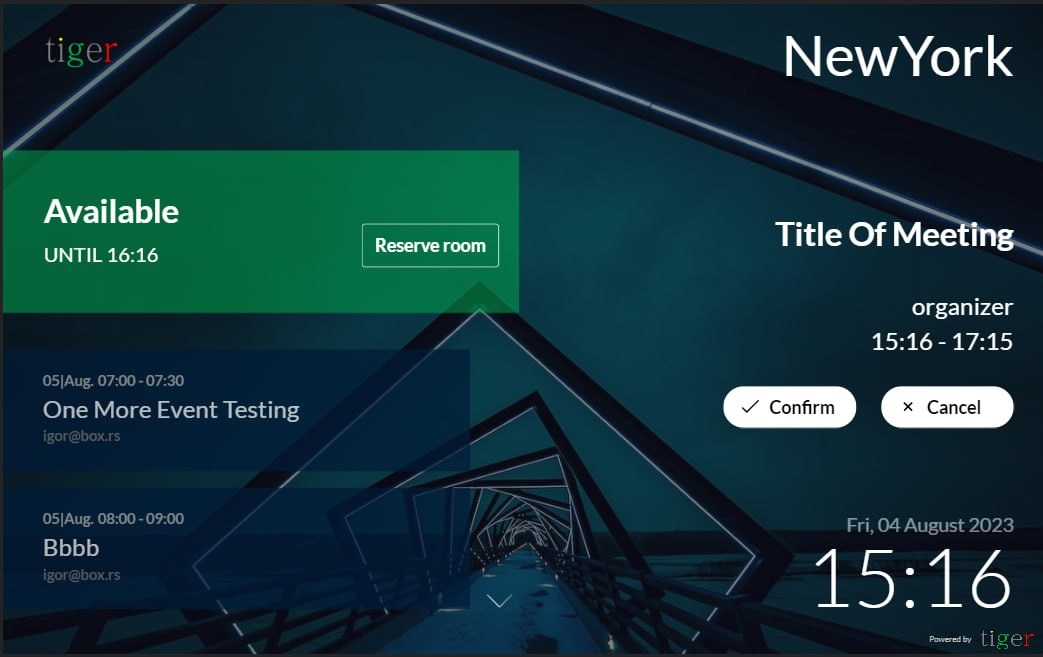
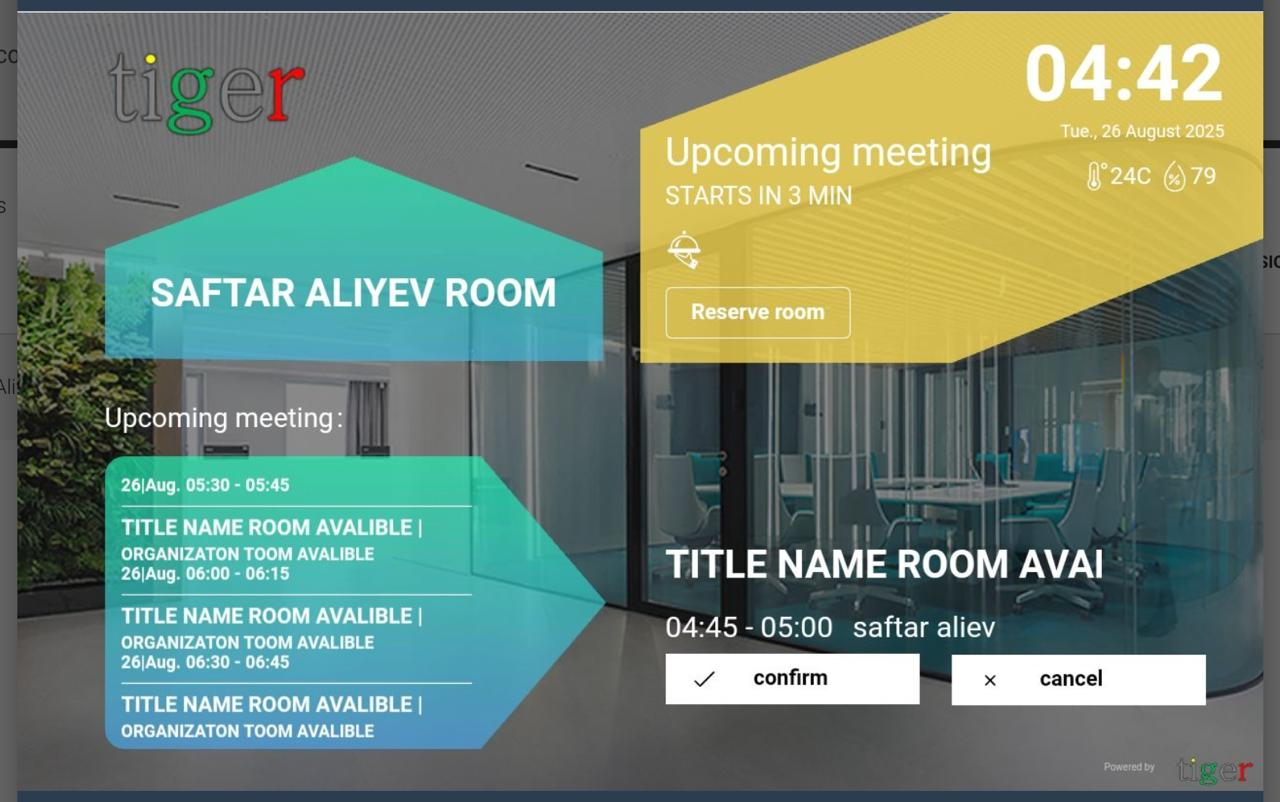
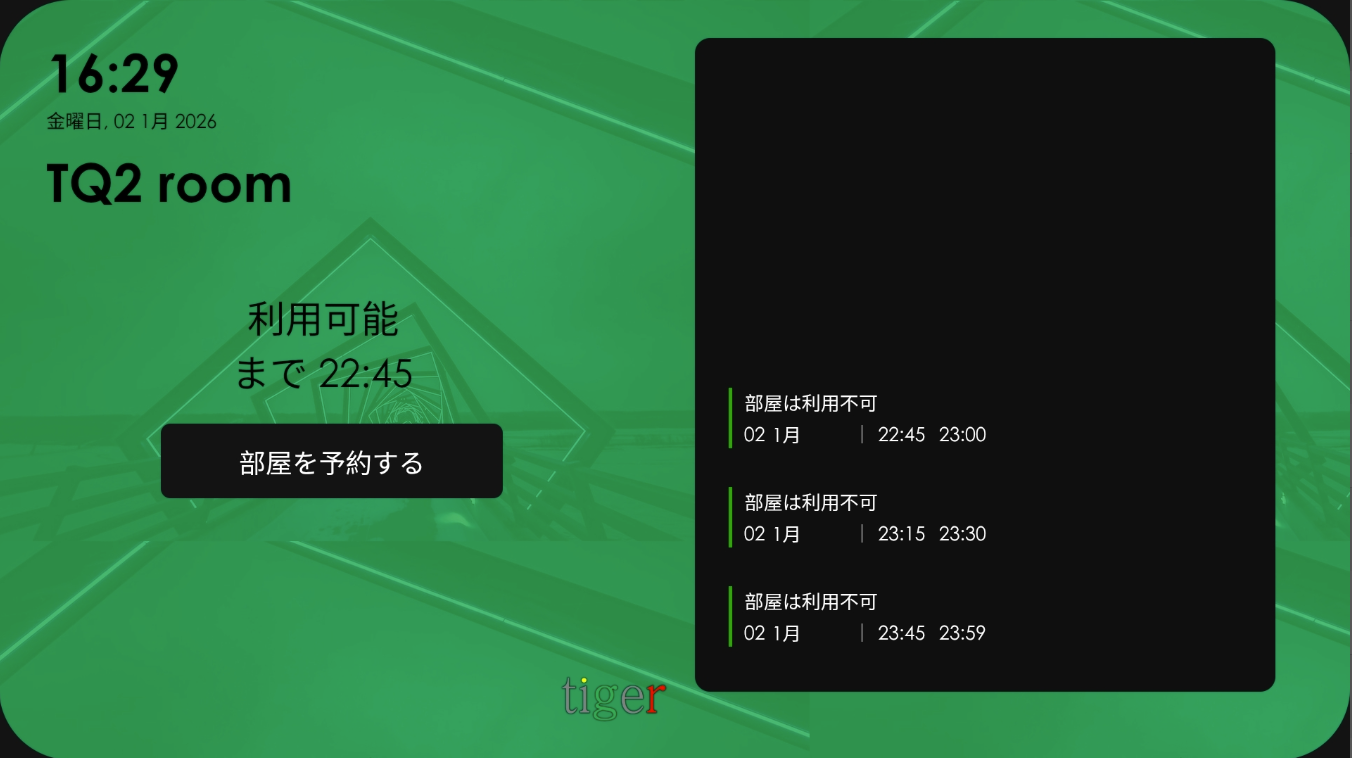
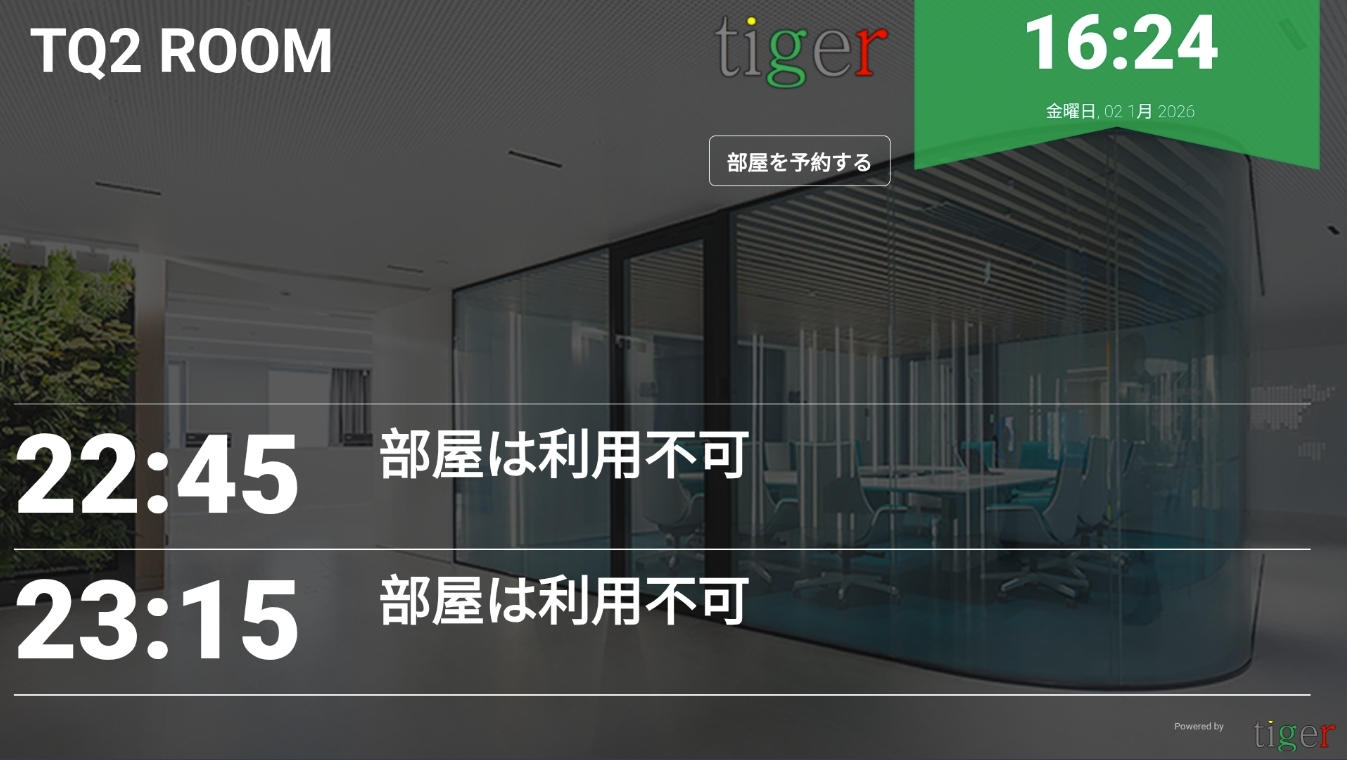
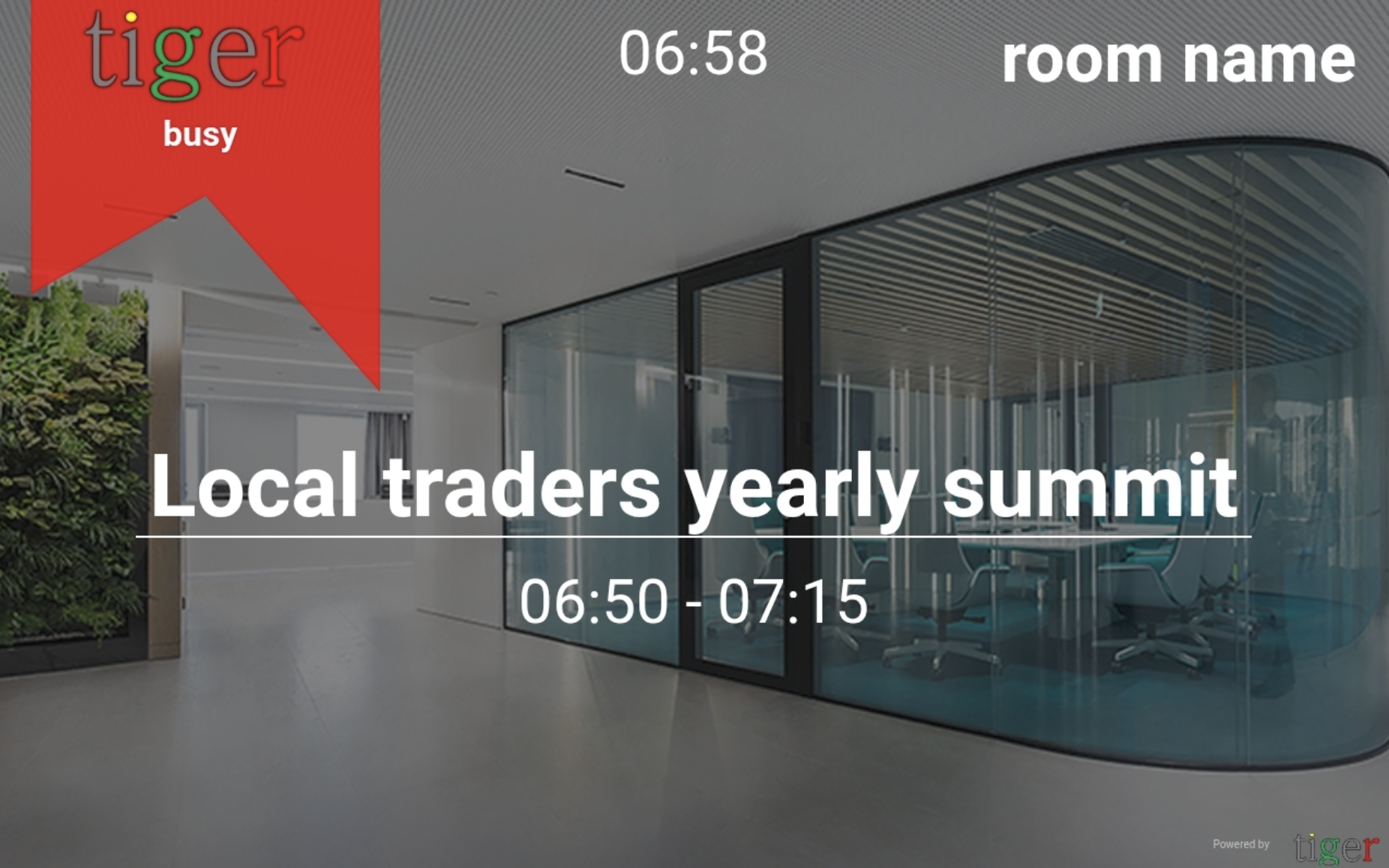
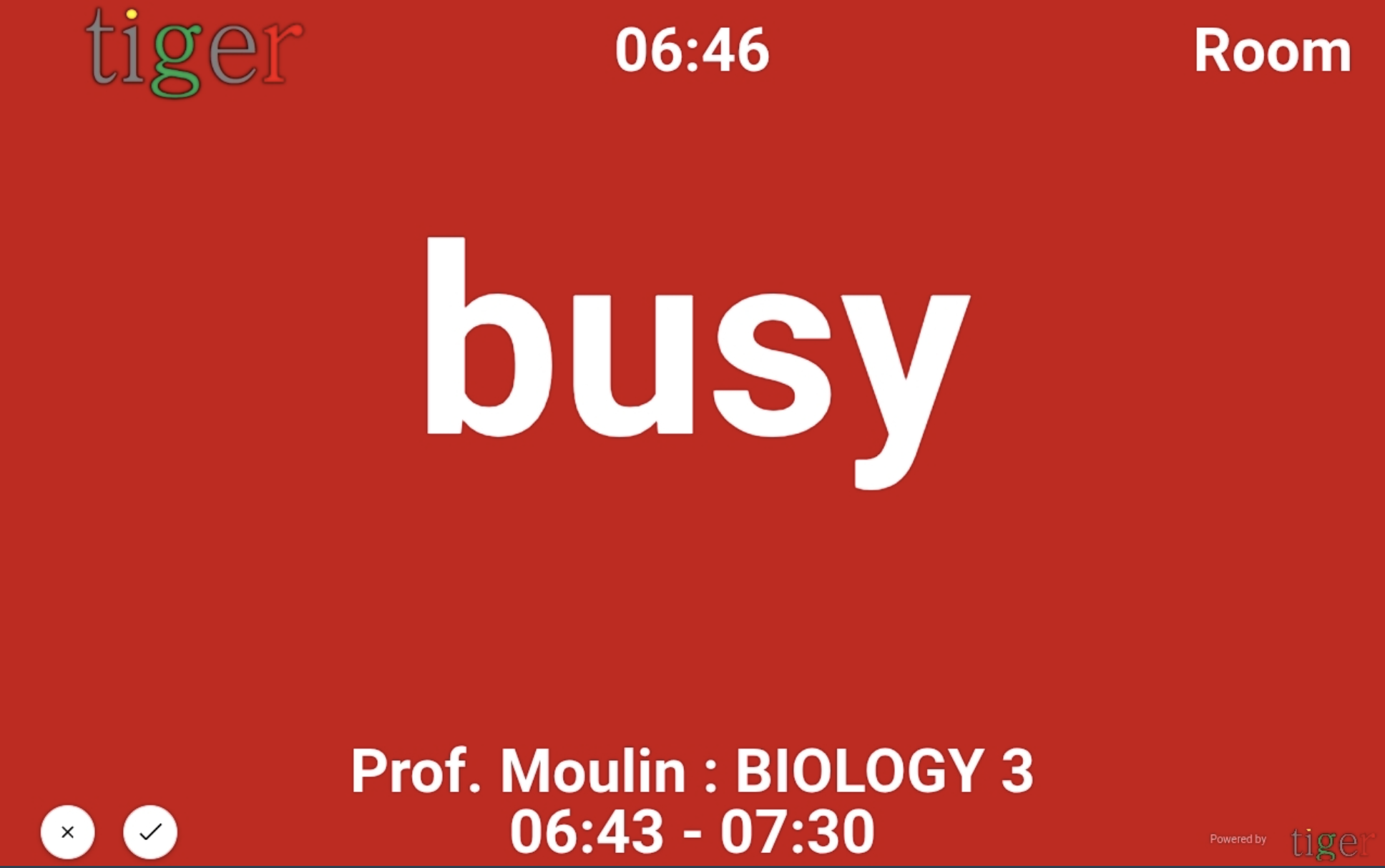
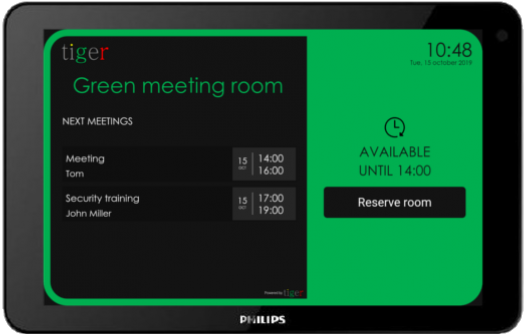
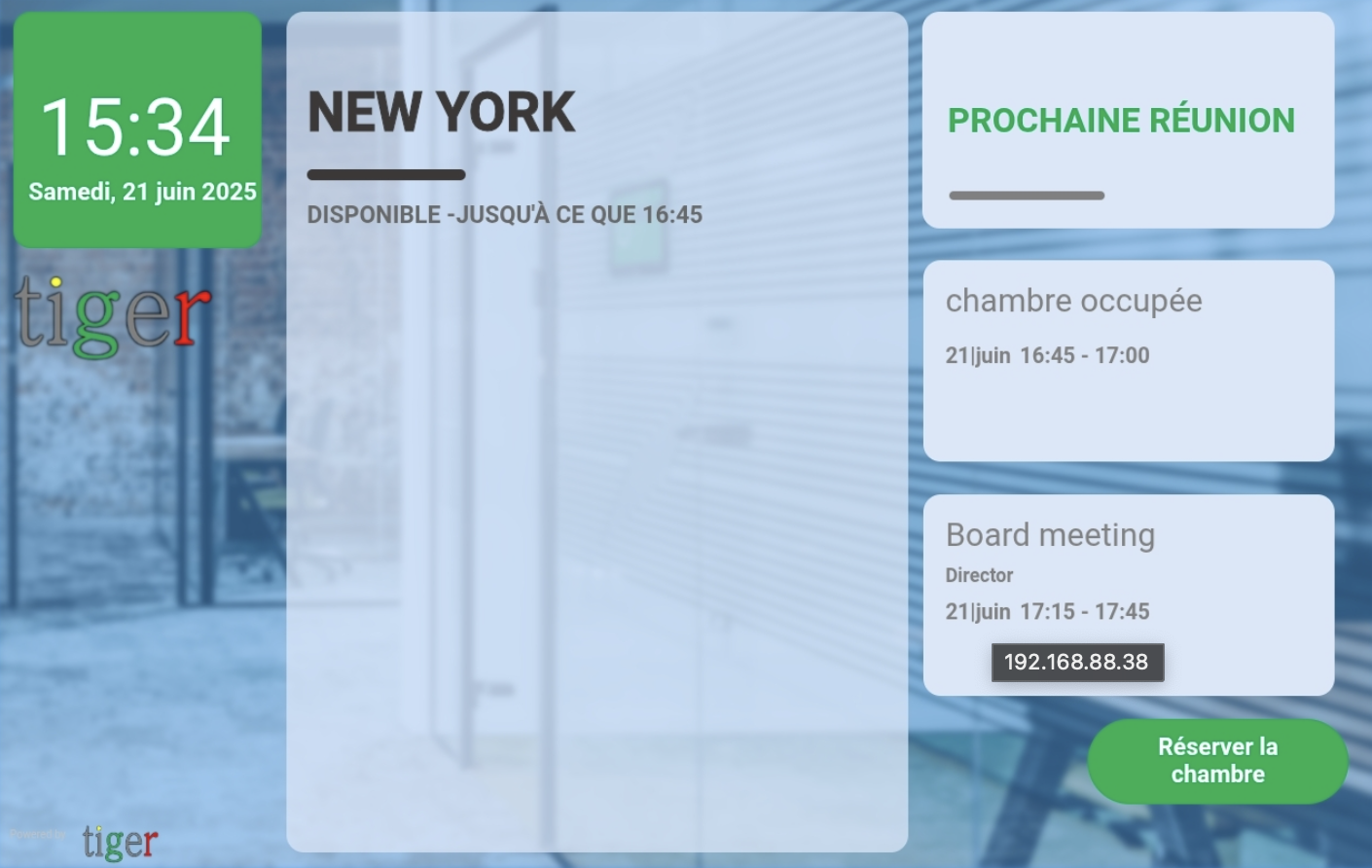
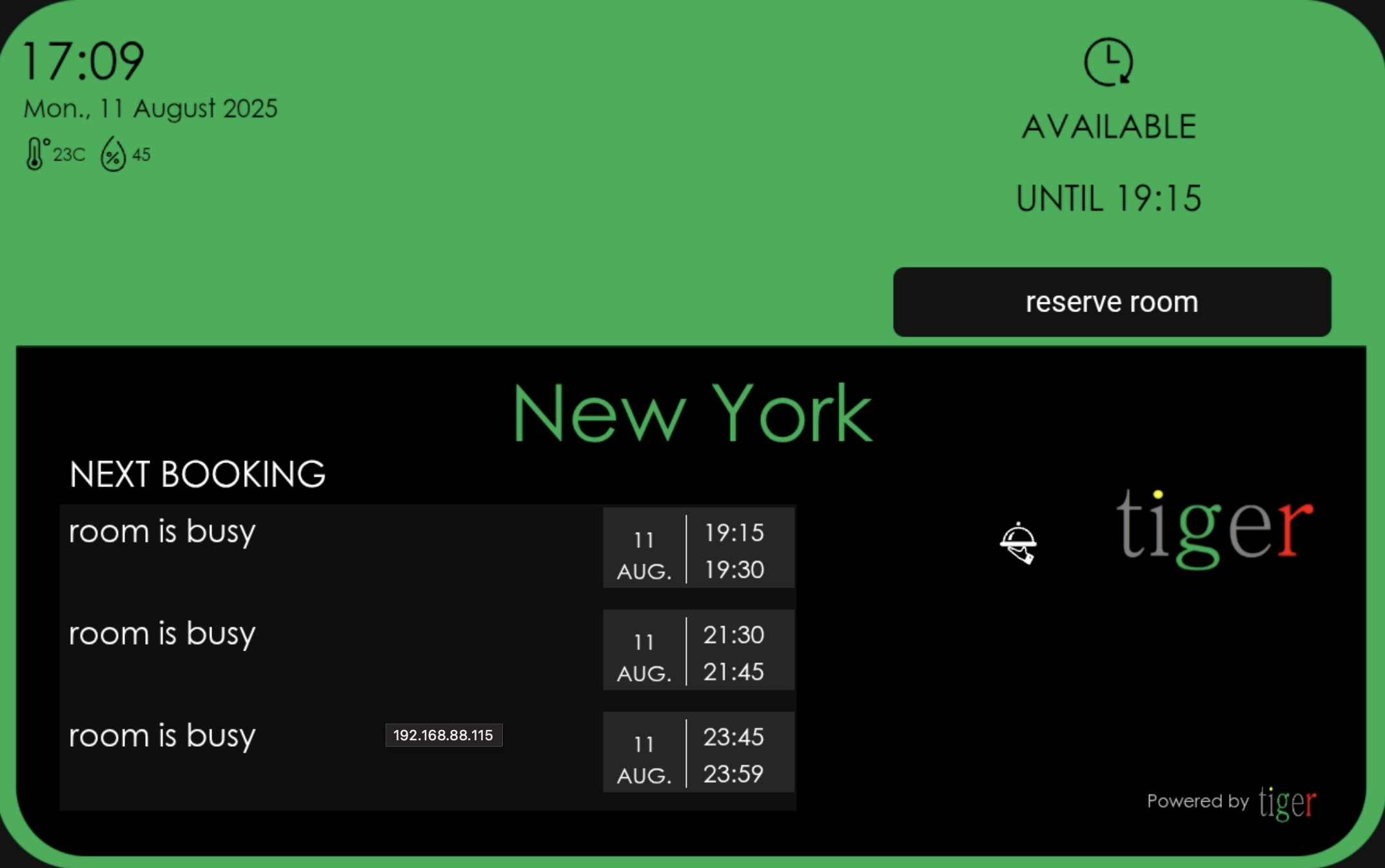
Tigermeeting booking-screen supports many different themes helping the screens fit into the environment and match your school or office design.
The theme content is easily managed directly from the Admin app:
- theme change and choice
- company logotypes
- theme background image
- enable/disable Tigermeeting branding
- enable/disable weather information
- enable/disable room service
- enable/disable triggering the scanner

New themes can be added by the Tigermeeting support team - without any software upgrade.
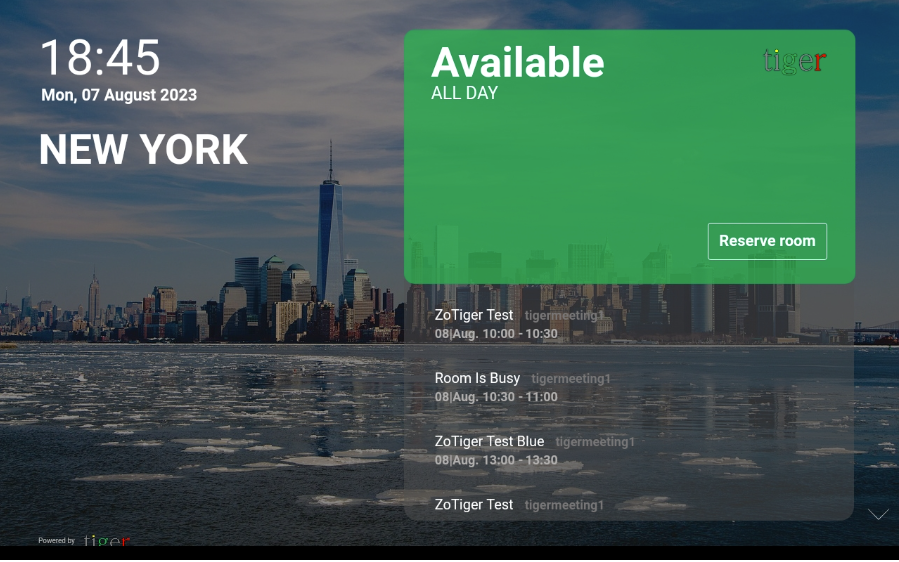
These themes are the customers' favorites:
 |
 |
 |
 |
 |
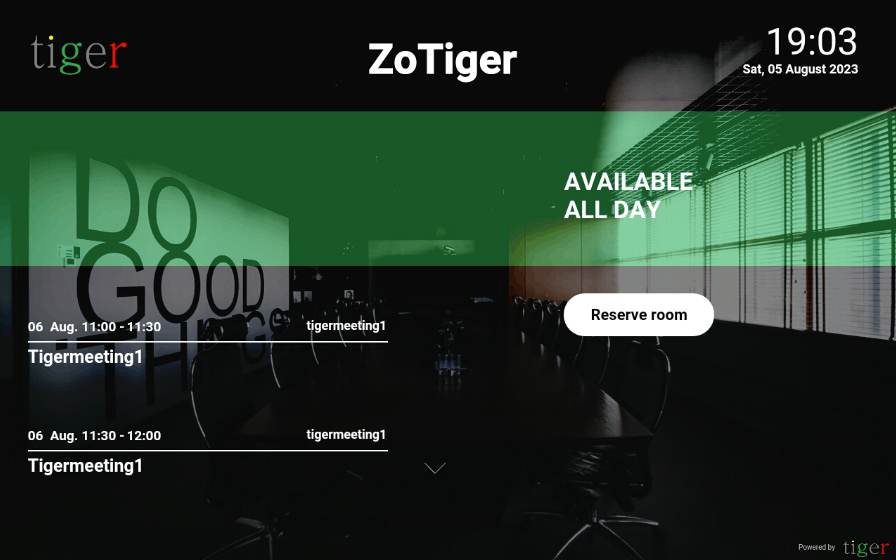 |
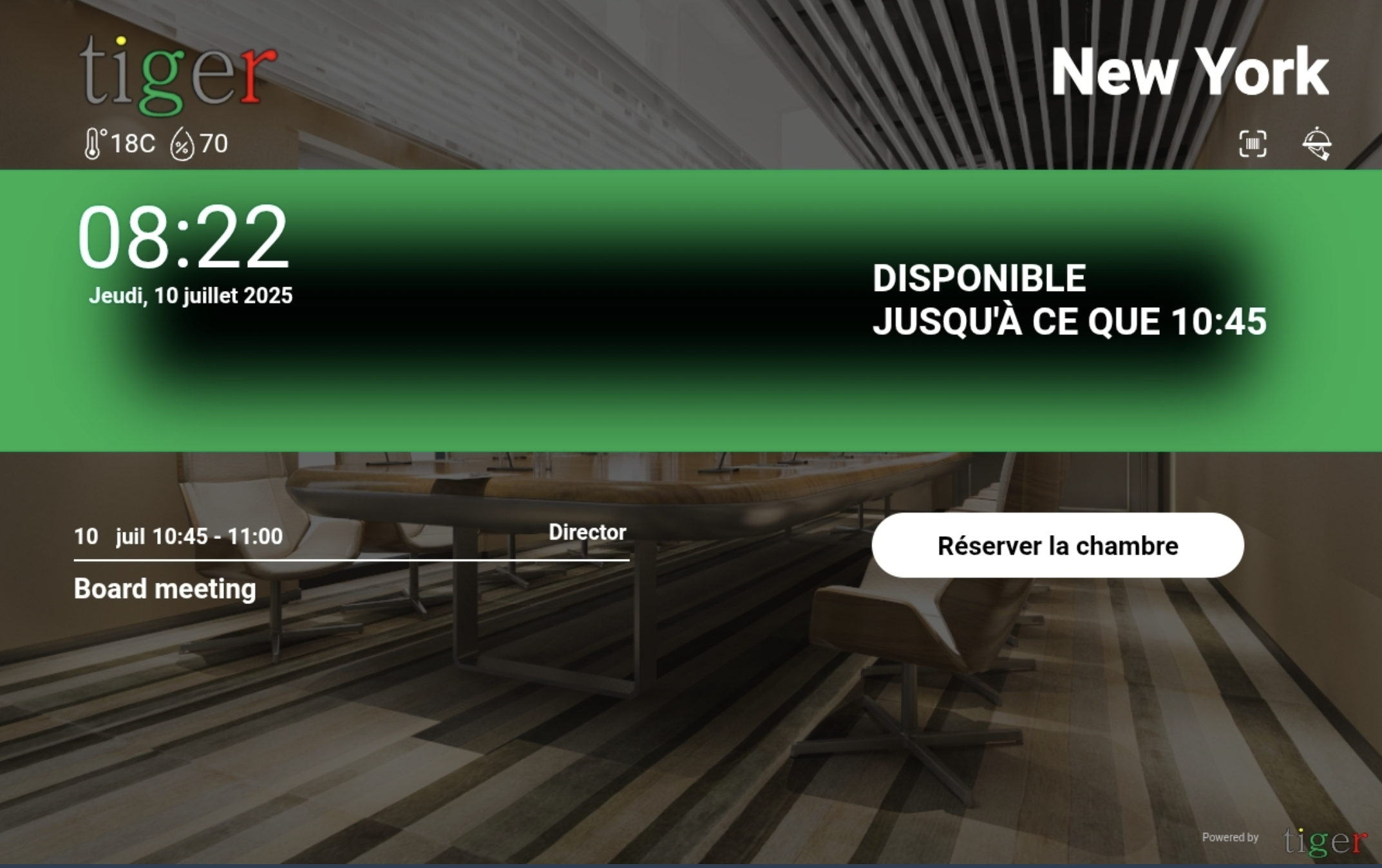 |
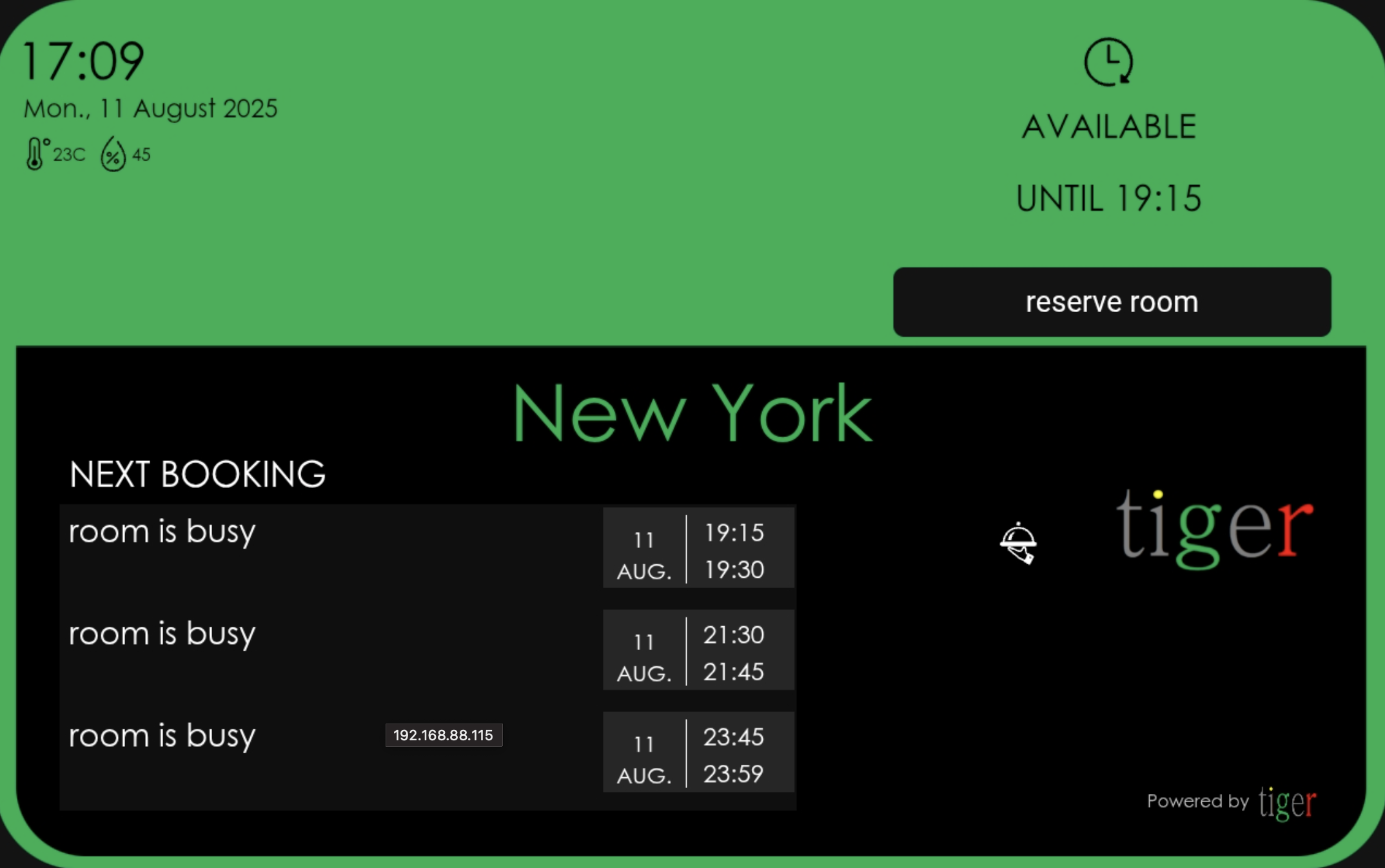 |
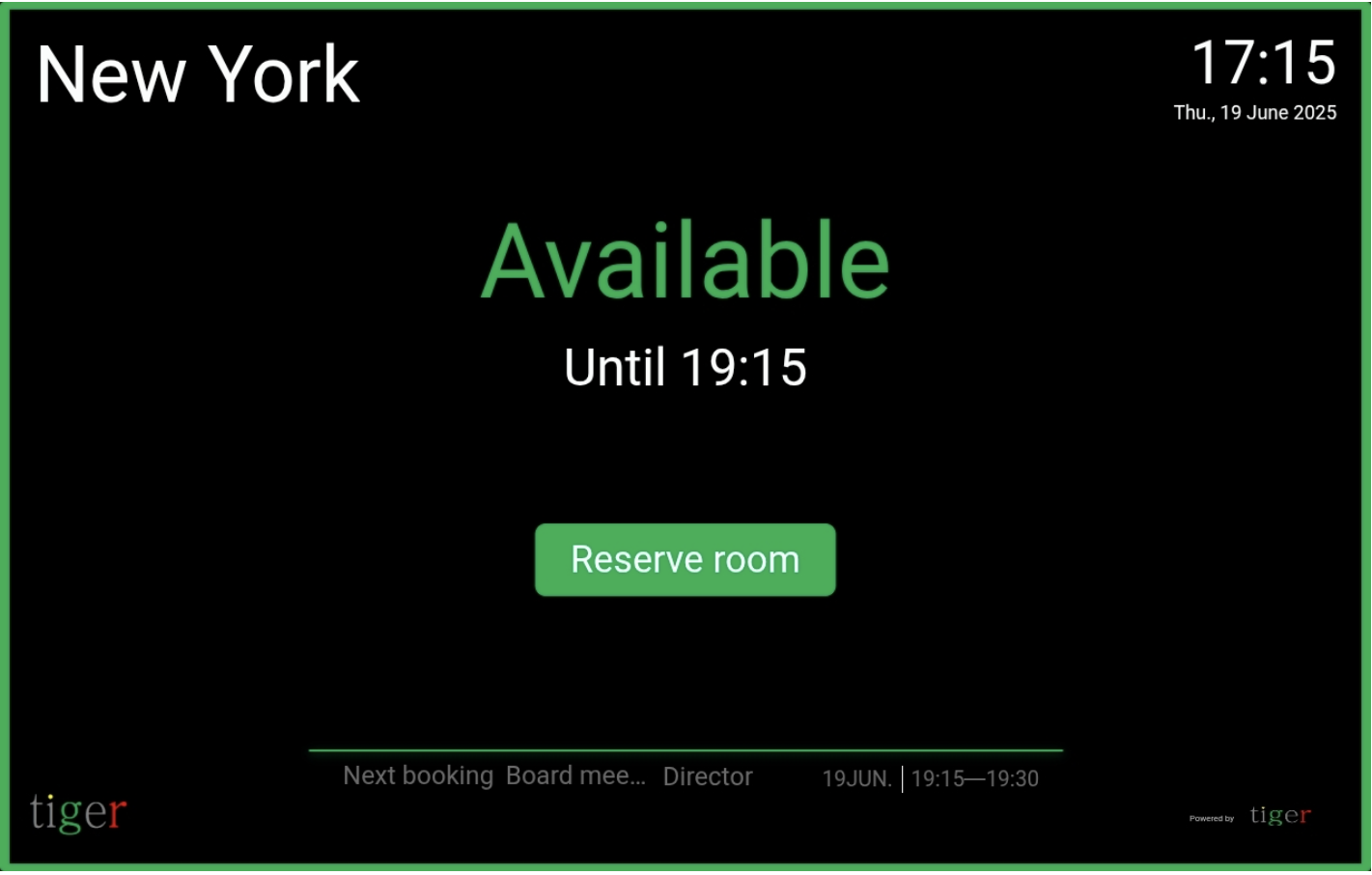 |
 |
 |
 |
 |
 |
YOUR NEW BESPOKE THEME |
 |
 |
 |
Pick your favourite theme or ask for a bespoke theme to be created that you can share with the entire Tiger community or use it exclusively just by on your own.
Screen orientation and rotation
Not all themes support portrait mode, but both landscape and portrait themes are available.
All Tiger themes support reverse orientation: landscape theme flipping to reverse-landcape and portrait flipping to reverse portrait and back - to fit the devices' actual position.
Adjusting the devices' secondary display's orientation is also supported with the secondary screen rotation (on Rockchip architectures only) allowing dual screen devices to be placed on tables or perpendicularity on the wall or hanging from the ceiling exposing both screens to the users.
Many other manufacturers have secondary screen rotation configuration directly from the Android settings.
LED bars and frames
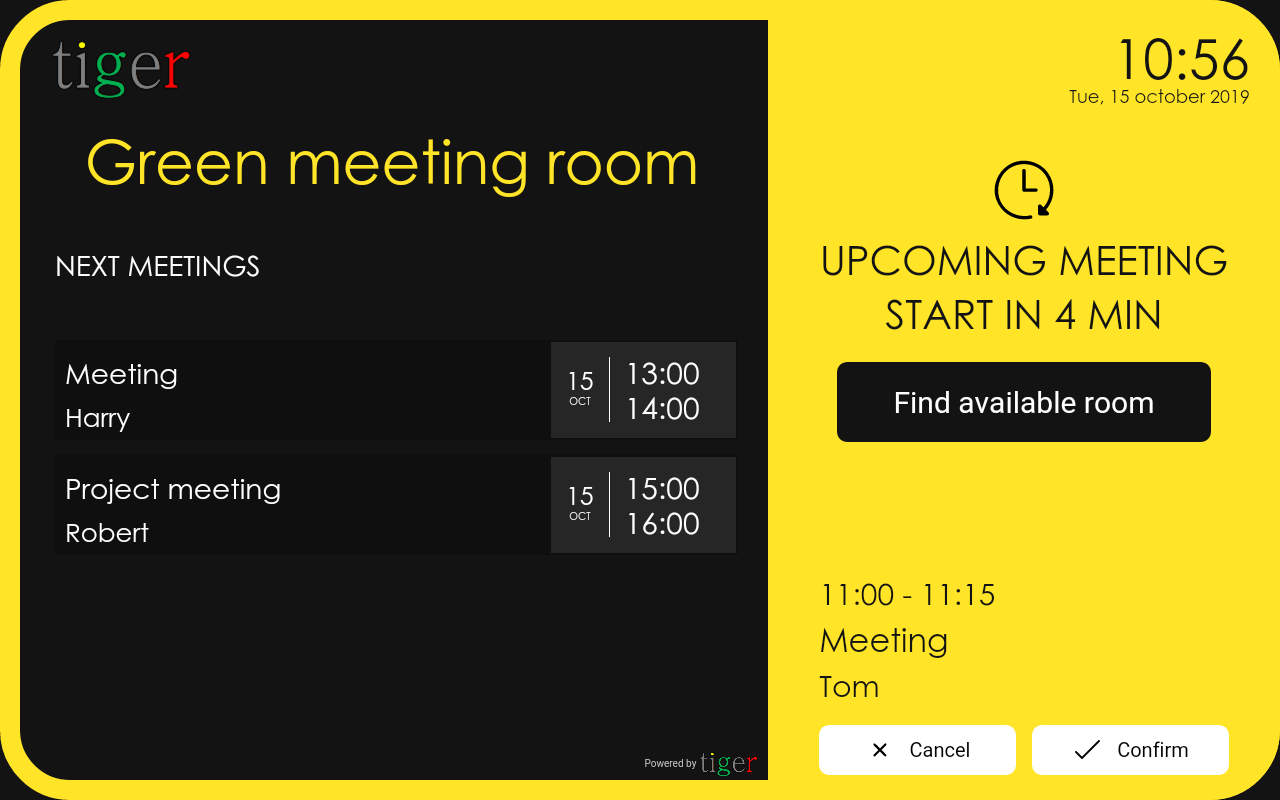
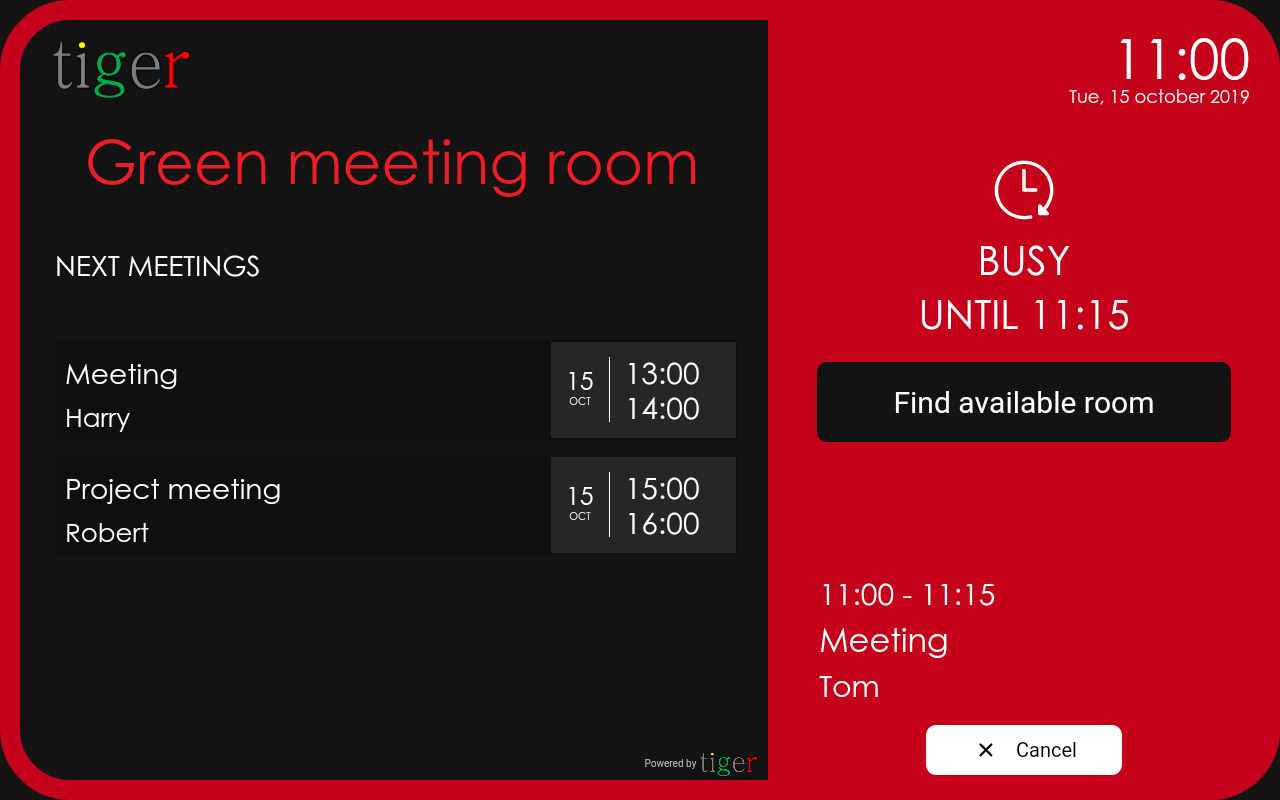
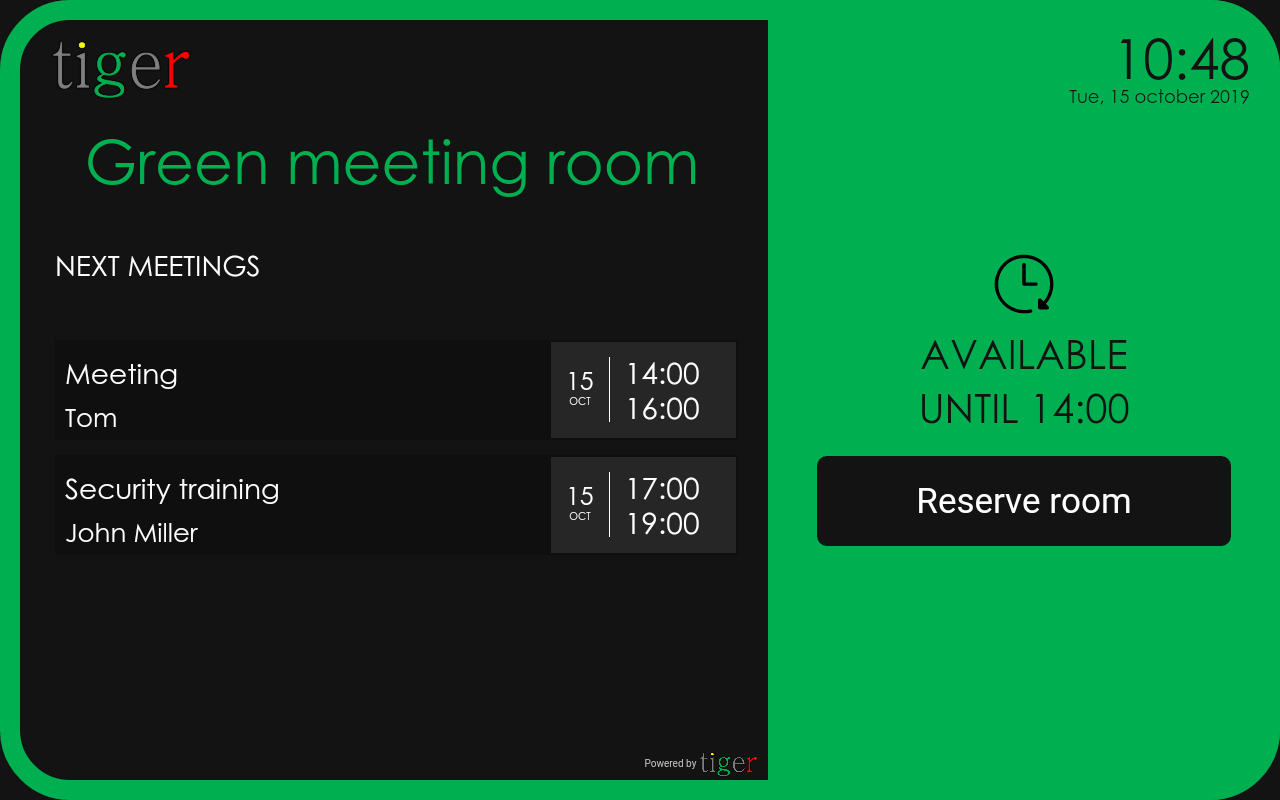
Tigermeeting booking-screen utilizes the devices' LED bars and frames - using three different colors on the screens as well the LED-bars - when available.
LED backlights and the theme colors help the user to determine the room's state from the distance.
Green light means that the room is now available.
Yellow: the rooms is about to get occupied (time limit can be set in the Admin application).
Red indicates that the meeting room is now busy and cannot be booked. However – on each booking screen the user can find the list of other available rooms and on an easy way book a meeting remotelly.
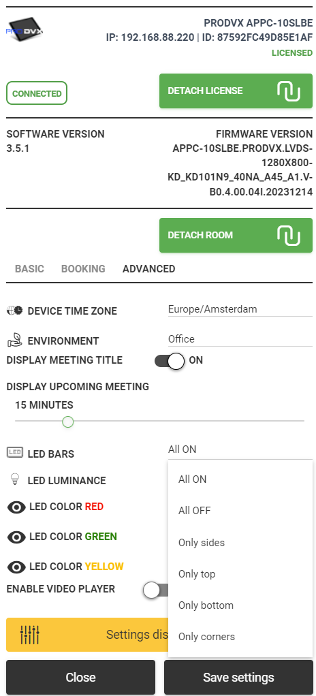
Configure LED bar behavior directly from the Admin App:
- all leds OFF
- all leds ON
- just side leds ON
- just top leds ON
- just front leds ON
- just bottom leds ON
- just corners ON
- luminance choice: low, medium, high
- user choosable, full RGB span for red, green and yellow color functionalities
Configure screen ON and LED lights ON time to reduce the energy consumption switching off the screens and LED lights when they are not needed.
Light up you corridors with Tiger application running on screens that have led light bars.
Impress your visitors, satisfy your employees.